Last updated: 12 September 2026
The information on this page is provided according to our current best knowledge and may be subject to change. Please ensure that you consult the latest available guidance before applying these instructions.
General Notes:
- AR users authenticate through EU Login when registering on the SRP. Authentication steps carried out within EU Login are not described here. Further information on EU Login is available through the official EU Login guidance at: https://trusted-digital-identity.europa.eu/index_en.
- An EU Login account with multi-factor authentication (MFA) is needed in order to access the platform. ARs that have already an EU Login account with no MFA enabled should enable MFA before their first access to the platform.
- Validation by the CSIRT Designated as Coordinator (CDaC) of whether an AR is authorised to submit notifications on behalf of a specific manufacturer takes place after registration (described below) and is not a prerequisite for submitting a notification. Validation takes place after the first access to the platform, in parallel with the reporting process, and will not affect the ability to submit notifications through the SRP. Specific validation procedures may vary between CSIRTs and remain the responsibility of the relevant CSIRT.
- Manufacturers and open-source stewards are advised to register and initiate the validation process only when they need to submit a specific notification, rather than registering pre-emptively.
Register as a Primary AR & associate with a manufacturer
Follow this procedure to register on the SRP as a Primary Assigned Representative (Primary AR) and create an association with a manufacturer.
Pre-conditions
- You are not already registered as an SRP user
- You have an active EU Login account with MFA enabled
Steps
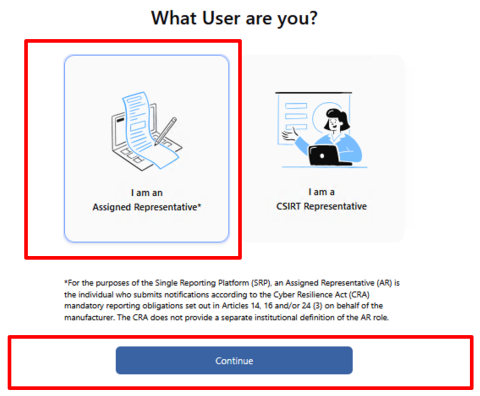
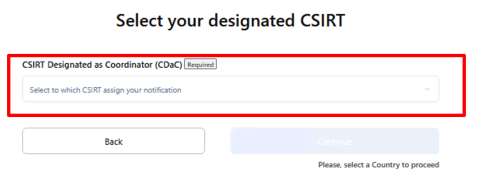
- Select the CSIRT Designated as Coordinator (CDaC) from the drop-down menu and click “Continue”. Note: The manufacturer is responsible for identifying the correct CDaC in accordance with Article 14(7) of the CRA.
- Authenticate through EU Login.
- Read and accept the legal agreement.
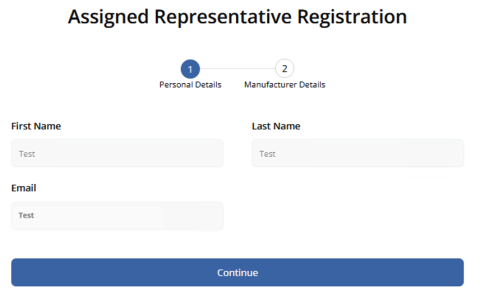
- Review and confirm the accuracy of your pre-filled personal details (First Name, Last Name, Email), then click “Continue”. These fields are retrieved from EU Login and cannot be edited in the SRP.
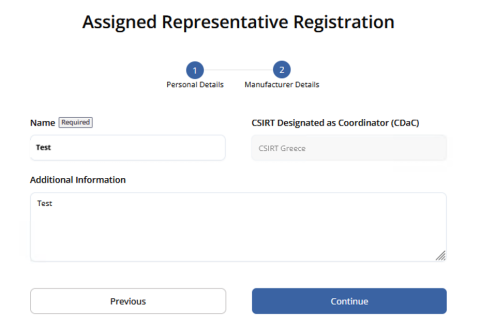
- Enter the manufacturer details (manufacturer name, additional information) and click “Continue”.
Exceptions: If required manufacturer information is missing, such as Manufacturer Name, the SRP displays an error and the “Continue” button remains disabled.
Expected result and system outcome: Registration is completed and the user account becomes “Active” with the “AR Primary User” role. The manufacturer entity is created in the SRP based on the information provided, and the AR-manufacturer association is submitted for validation by the CSIRT. The system sends a confirmation email to the user.
The AR may start submitting notifications while validation of the AR–manufacturer association is pending.
Registration as a Secondary AR via Invitation
Follow this procedure to register on the SRP as a Secondary AR using an email invitation sent by the Primary AR
Pre-conditions
- You are not already registered as an SRP user
- You have an active EU Login account with MFA enabled
- You have received a valid SRP email invitation initiated by a Primary AR
- The feature to invite a Secondary AR is available only to a "Verified" Primary AR
Steps
- Click the link in the email invitation. You will be prompted to authenticate through EU Login, which completes the authentication successfully.
Exceptions: If the invitation link has expired because more than 7 days have passed since the SRP sent the invitation, you will be redirected to a page displaying an error message.
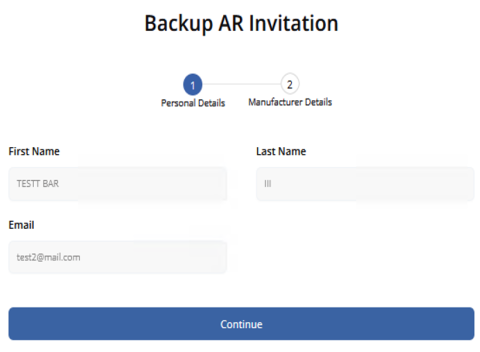
- Review and confirm the accuracy of your pre-filled personal details (First Name, Last Name, Email) and click “Continue”. These fields are retrieved from EU Login and cannot be edited in the SRP.
- Review and confirm the accuracy of the pre-filled manufacturer details for the manufacturer associated with the Primary AR who initiated the invitation and click “Accept invitation”.
Expected result and system outcome: Registration is completed and you become a Secondary AR for the relevant manufacturer. Your system role is displayed as “AR Backup User” and your status is set to “Active”. If registration is not completed within 7 days of the invitation being sent, the invitation expires and the user status becomes “Invitation Expired” in the SRP.