Image
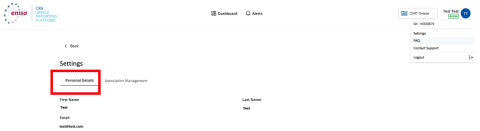

This section explains the AR interface of the SRP for various functions that can be performed.
Last updated: 12 September 2026
The information on this page is provided according to our current best knowledge and may be subject to change. Please ensure you consult the latest available guidance before applying these instructions.
Note: AR users can access the Dashboard only after successfully logging in and while their SRP user status is “Active”, subject to applicable role and association restrictions.
Purpose: Follow these steps to view your personal details or update the details of a manufacturer.
Pre-conditions: Your user status is “Active”, and you are logged in to the SRP.
Personal details:
Manufacturer details:

Purpose: Follow these steps, as the Primary AR, to invite a Secondary AR for the same manufacturer to register on the SRP.
Pre-conditions:
Open the Settings section and select the option to add a Secondary AR ("Invite Backup") for the manufacturer you represent.
Note: You must first have a verified AR-manufacturer association before being able to invite a Secondary AR.
Pop-up confirming the invitation has been sent is then displayed.
Expected result: The SRP sends an email invitation to the Secondary AR. A new user record is created in the SRP with the specified email address and corresponding manufacturer details. The user role is assigned once the registration is completed.
Purpose: Follow this procedure to request an additional manufacturer association through the Settings menu.
Pre-conditions: Your user status is “Active" and you are logged in to the SRP.

A pop-up confirms that the manufacturer has been created and associated with your account.
Exceptions: If required manufacturer details are missing, such as Manufacturer Name, the SRP displays an error and the “Continue” or “Save Edit” button remains disabled.
Expected result: The manufacturer record and the AR association with the manufacturer are created in the SRP with the status “Unverified”. A request to verify the AR-manufacturer association is submitted to the CSIRT Designated as Coordinator (CDaC) for validation. The SRP sends an email confirming the association request. As an "Unverified" AR, you can submit up to 20 notifications.
Purpose: Follow these steps, as a Secondary AR, to request to the Primary AR role for a manufacturer.
Preconditions:

A pop-up appears confirming the claim request.
Expected result: The request is created and submitted to the designated CDaC for review and approval. The Secondary AR remains in the existing role until the request is approved.
Purpose: Follow these steps to manage the association between AR users and manufacturers, including removal of your own association or, where applicable, the association of a Secondary AR.
Preconditions:
As a Primary AR, you can remove your own association or remove a Secondary AR for the manufacturer. As a Secondary AR, you can remove your own association.
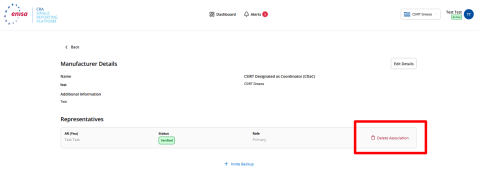
Expected result: The system removes the selected AR association, and its status is updated to “Deleted”.
Purpose: Use the Dashboard to view accessible notifications, search, sort and filter records, and open notification details.
You can access the Dashboard by:
Precondition:
Purpose: Follow these steps to view the list of notifications accessible to you.
Preconditions: Your user status is “Active” and you are logged in to the SRP.
Expected result: A Primary AR can access all notifications associated with their manufacturer, whereas a Secondary AR can only access notifications they submitted and drafts they created. Secondary ARs cannot view notifications submitted by another AR associated with the same manufacturer.
Purpose: Follow these steps to search, sort and filter the notifications accessible to you.
The actions that you can perform include:
Preconditions:
Exceptions: In case no results are found, the search returns no results, and the system informs you that no notifications match the search criteria.
Expected result: The results are filtered and/or sorted based on your selections.
Purpose: Follow these steps to view the details of notifications accessible to you.
Expected result: you can view the notification details.
Purpose: Follow these steps to review alerts generated by the system.
Preconditions:
Alerts are triggered by an action that requires the attention of the AR user. Unread alerts appear in blue. When an alert is opened, it is marked as “read” (turns grey). Red alerts appear only when an exceptional or critical action has occurred (e.g., a designated CSIRT has invalidated a submission).
Expected result: The selected alert is marked as “Read”, and you can review its details.
Stay updated with ENISA! Sign up for email alerts on publications, events, vacancies, and more.